This article walks you through quick setup of a character that responds to both keyboard/mouse and gamepad input in Unreal Engine.
Input Mappings in Project Settings
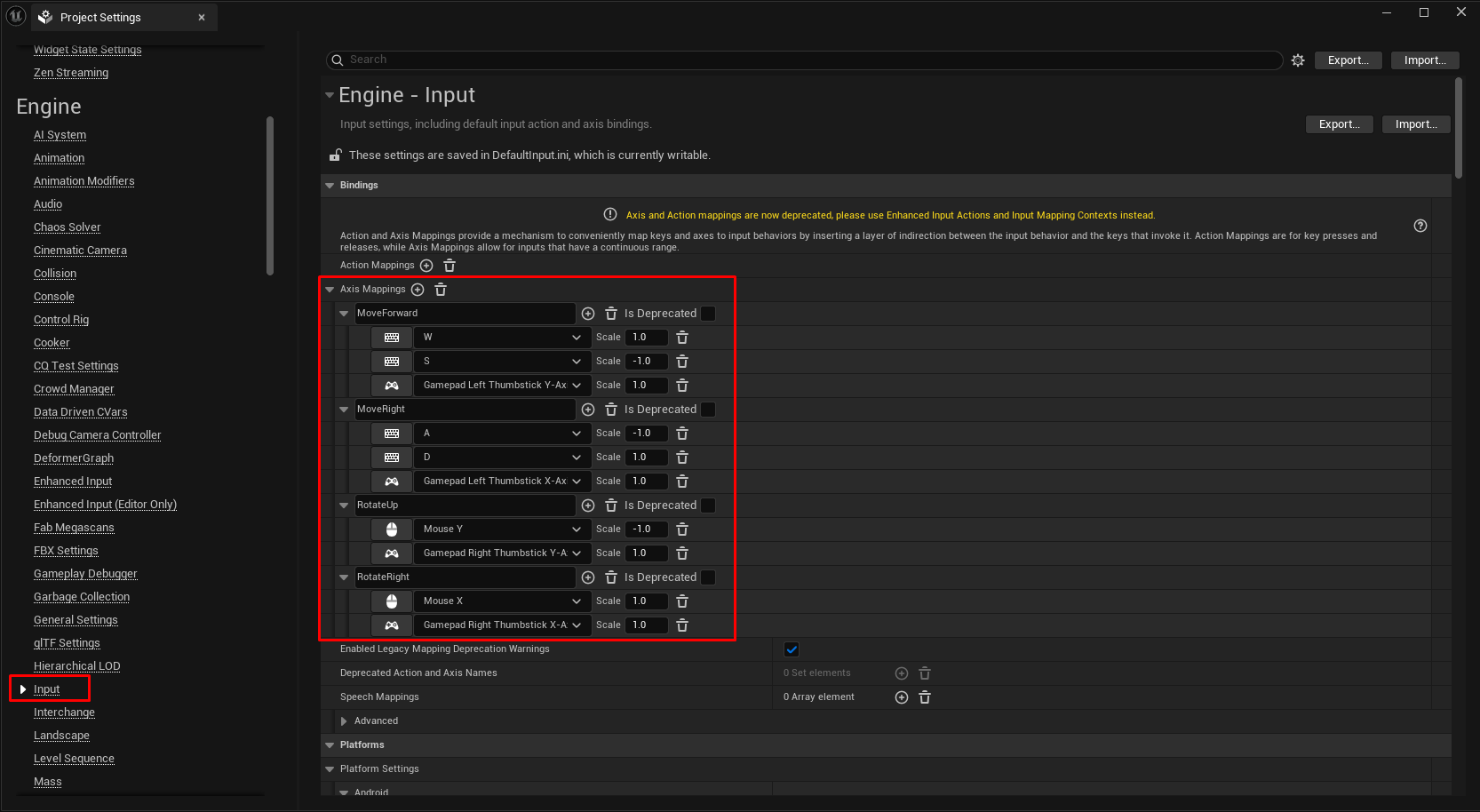
Open your project, then go to Edit → Project Settings. In the left panel, scroll to the Engine section and select Input. Under Bindings, create 4 new axis mappings:
MoveForward with Bindings:
W (1.0)
S (-1.0)
Gamepad Left Thumbstick Y-Axis (1.0)
MoveRight with Bindings:
D (1.0)
A (-1.0)
Gamepad Left Thumbstick X-Axis (1.0)
RotateUp with Bindings:
Mouse Y (-1.0)
Gamepad Right Thumbstick Y-Axis (1.0)
RotateRight with Bindings:
Mouse X (1.0)
Gamepad Right Thumbstick X-Axis (1.0)
Character Blueprint
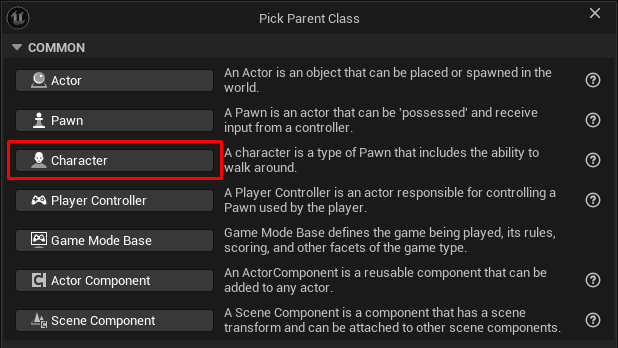
In the Content Browser, right-click → Blueprint Class. Search for and select Character and name it BP_Character.
Enable Pawn Pitch & Yaw Rotations
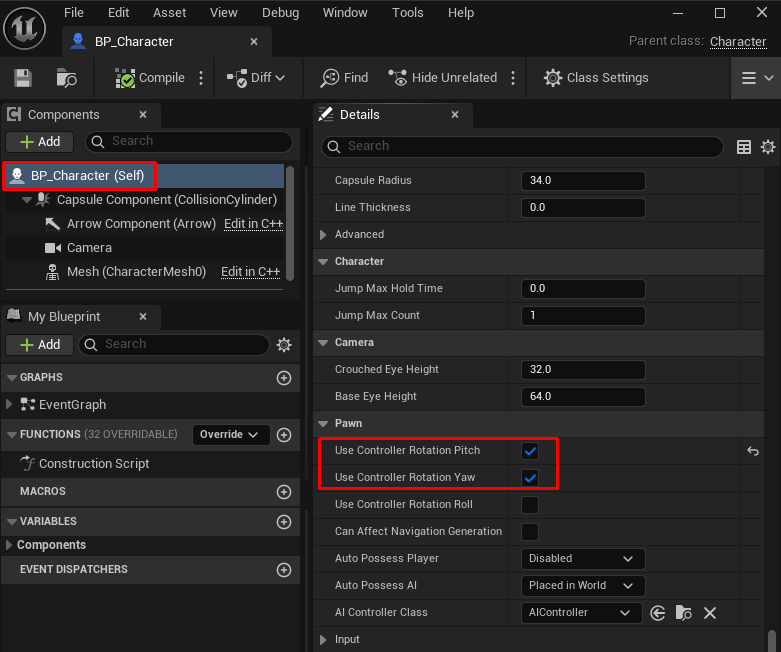
By default, a pawn only uses Yaw (Z-axis) for rotation. For mouse and gamepad look to control pitch, you need to configure the pawn and its movement component. In the Components panel, select BP_Character (Self) and in the Details panel, under the Pawn section, check Use Controller Rotation Pitch and Use Controller Rotation Yaw.
Add Input Logic in the Event Graph
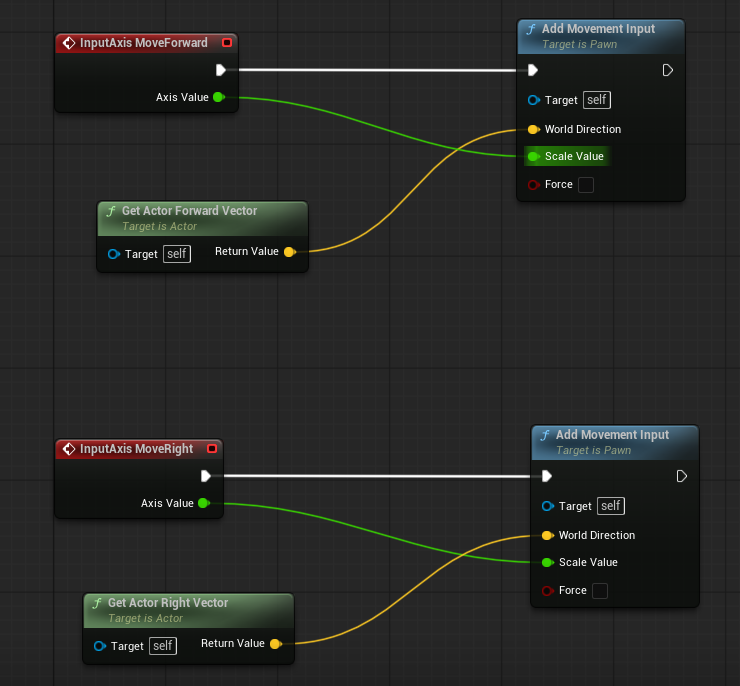
Open the Event Graph in BP_Character and set up the following nodes:
InputAxis MoveForward
InputAxis MoveRight
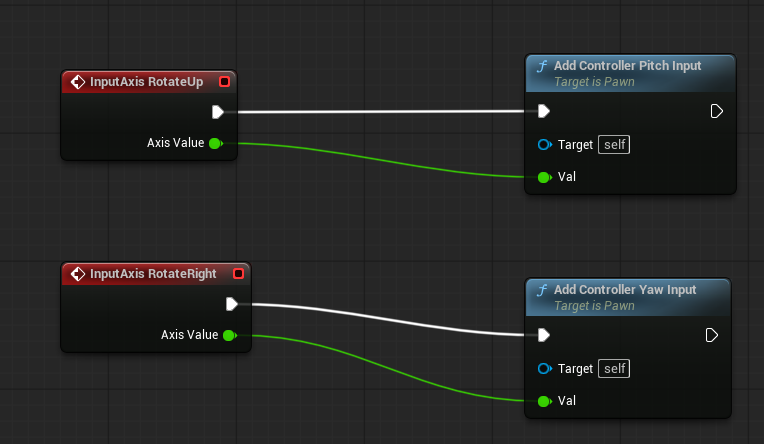
InputAxis RotateUp
InputAxis RotateRight
Create two Add Movement Input nodes and connect them to the Axis Values of MoveForward and MoveRight. Now we need to set World Direction. Create Get Actor Forward Vector and Get Actor Right Vector nodes and connect them appropriately to the Add Movement Input nodes.
Now, create Add Controller Pitch Input and Add Controller Yaw Input nodes and connect them to the Axis Values of RotateUp and RotateRight.
Notes
Both gamepad and keyboard/mouse are handled automatically. Unreal fires the same action nodes regardless of which device triggered them, so one set of nodes covers both.
The character must be possessed by a player controller for input to flow.
For rotation input sensitivity, you can add a scale multiplier node before Add Controller Pitch Input and Add Controller Yaw Input.
That's it - your character now responds to WASD + mouse and dual-stick gamepad input with move and look controls.